 Jikū
Invite a guest list
Import your guests, choose email or WhatsApp to invite them, and publish the event.
When you already know who to invite (a wedding, a seminar, a general assembly), each guest gets a personal link and answers in one tap.
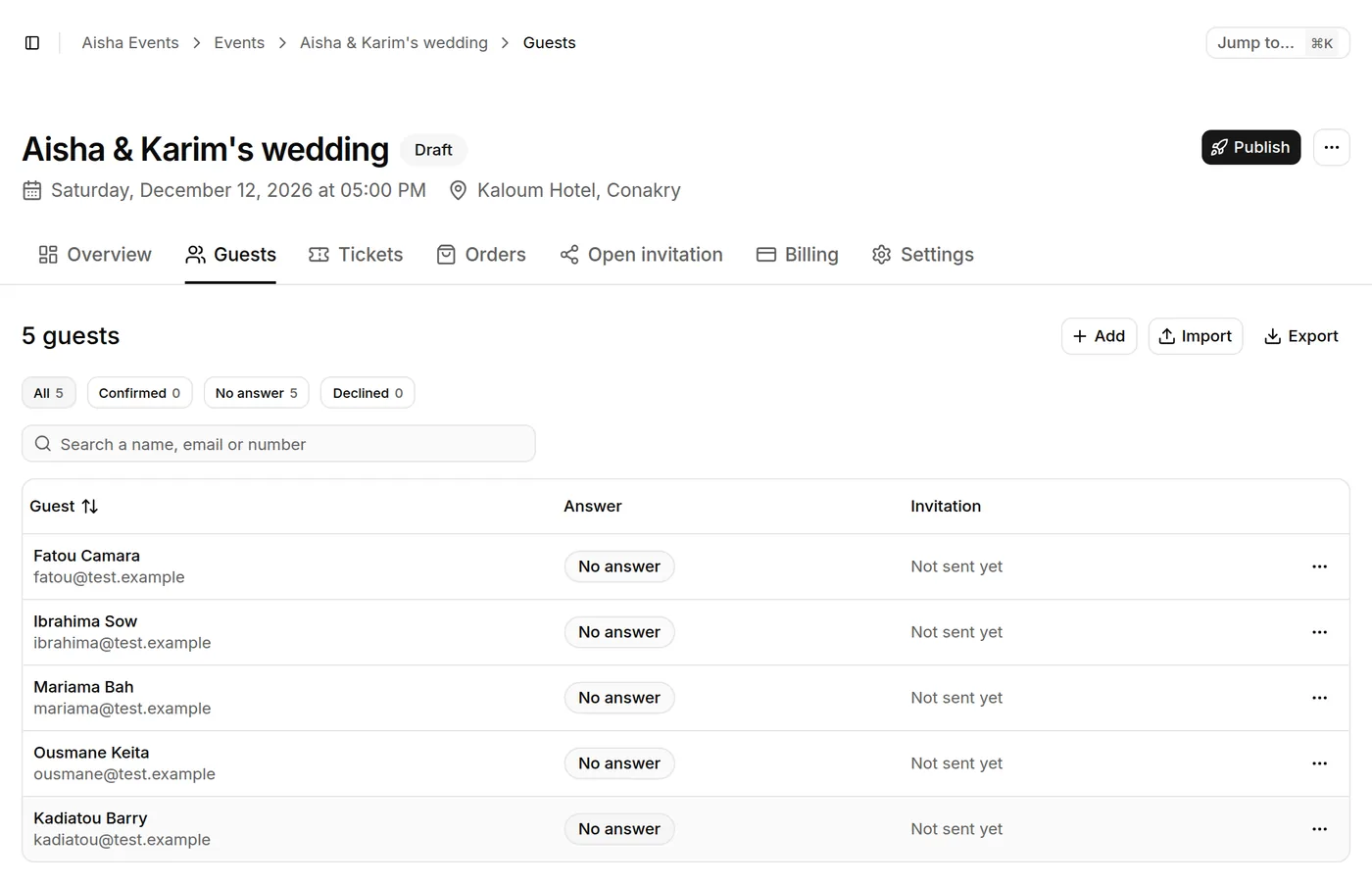
Add your guests
In the event's Guests tab, import a guest list from your Excel or CSV file, or add guests one by one. Duplicates are flagged. An optional channel column (email or whatsapp) sets a guest's channel; without it, the event's rule applies.
Set up categories and prices
If your event has several categories (VIP, press, standard), create them with their capacity and, if needed, their price.
Choose the invitation channel
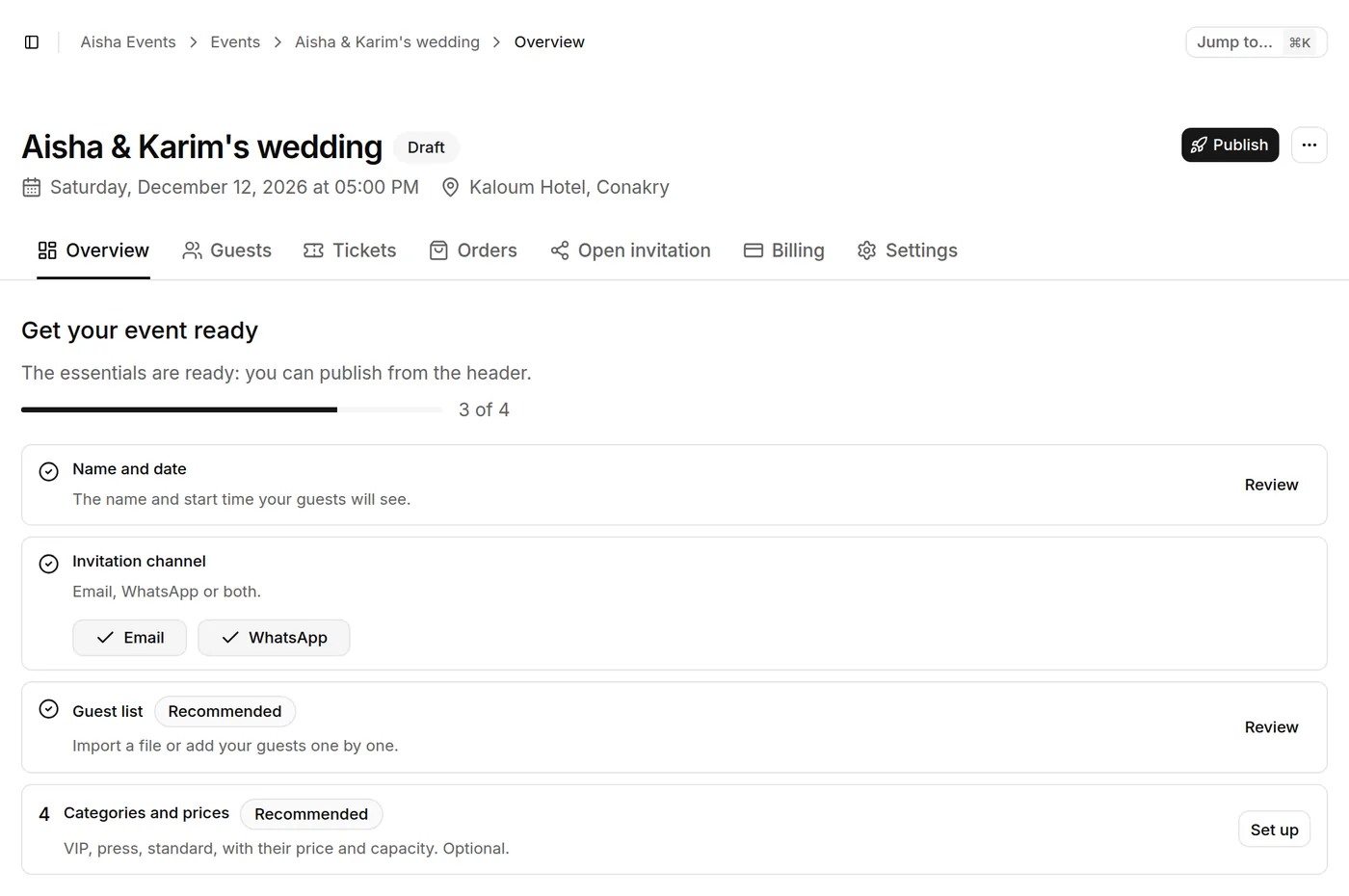
On the event's Overview, tap Email, WhatsApp or both: the choice is saved at once.
Even with both channels, each guest gets one invitation only. In Settings, Invitations section, pick the Primary channel and keep Use the other channel if the first one can't be used on: a guest with no number then gets the email, and a delivery that fails for good is tried once on the other channel.
For a wedding, a family party or an association, put WhatsApp first: guests read it right away. For a seminar, a school or a company, email first often works better, as guests find the ticket and the calendar invite there.
Publish
The Publish the event checklist checks the name and date, the channel, the categories and the guest list. Once everything is ready, tap Publish and send invitations: the event goes live and the invitations go out. Publish without sending is there if you would rather invite later from the Guests tab. Invitations go out once your email address is confirmed: until then, the event publishes and you send from the Guests tab afterwards.
After sending
You follow who answered and who is coming, live: the event's Overview shows how many confirmed, points out the guests who haven't received an invitation yet, and No answer opens the list of guests to remind. To remind them, open Send invitations in the Guests tab: Remind guests who haven't answered lets you pick the reminder's channel, and only the guests who haven't answered yet get a new message. On the event's day, the door figures lead the Overview. The guest opens their short link (/v/…) and taps I'm coming: their QR ticket shows right away, to present at the door, and is also sent on the channel of their invitation. The same link then opens the ticket directly.
Send from your own WhatsApp
For fifty to a hundred and fifty guests, a message from your number is opened far more than one from an unknown number. In the Guests tab of a published event, tap From my WhatsApp: Jikū prepares the personal link of every guest who has a number. Tap Send next to a guest: WhatsApp opens their chat with the message already written; send it, come back, and move to the next one. The guest is marked Sent and the counter moves on.
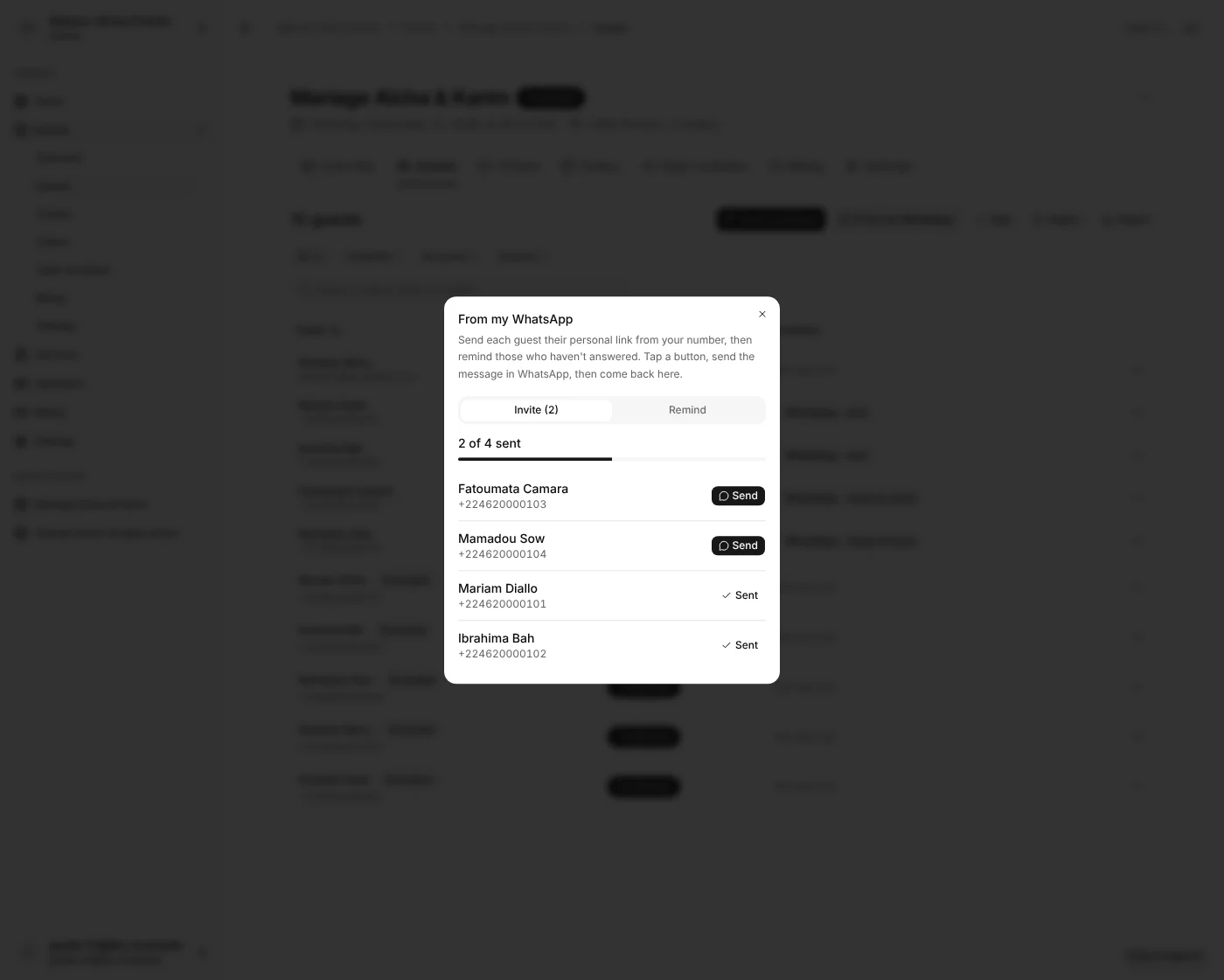
These guests count against the event's allowance as a send by Jikū does. Jikū does not write to them itself: when they answer I'm coming, their ticket shows on their link and goes by email when they have one. A guest Jikū already invites is not in the list to send.
The Remind tab of the same window lists the guests who haven't answered yet: Remind opens their chat with a short reminder and the same personal link. A reminder doesn't count against the allowance, and each guest shows when you reminded them. The window opens by itself on the tab with something left to do.
You can also combine both: a list of named guests and a card to share for everyone else.